
Productivity Apps
Writing, planning and note tools that help you work faster on macOS.
Hackstore offers Mac users a fresh place to discover, explore and compare desktop applications. Browse categories, read clear app details and choose software that suits your Mac, all from one welcoming starting point.
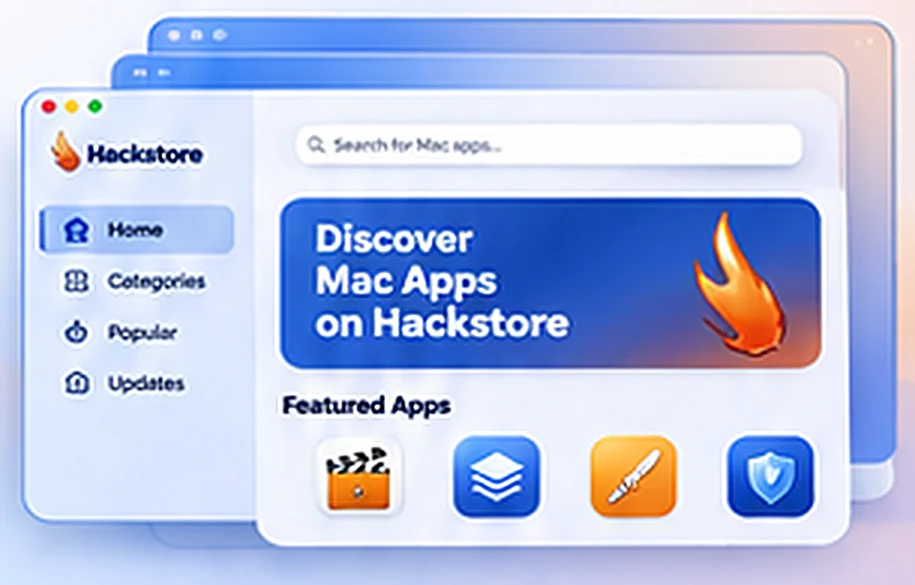
Hackstore is an alternative app discovery platform for Mac users who want more choice than a single marketplace provides.

Hackstore brings Mac software together in one browsable place, so finding a useful, popular or hard-to-locate app takes fewer searches. Listings show what an app does, who makes it and which systems it supports before you download anything.
Conventional marketplaces only show apps that their owner accepts. Hackstore was created as a different starting point, making room for developer tools, niche utilities and creative software that may be distributed elsewhere, while leaving the final decision about every app with you.
Four clear stages take you from browsing listings to running a compatible app on your Mac.
Open Hackstore and look through the app listings and categories to get a feel for the software on offer for macOS.
Narrow things down with search and categories until you reach the tool that fits your task, from editing to development.
Read each listing's description, developer, licence and macOS compatibility details before you commit to a download.
Download only apps that suit your Mac, then install them and approve macOS security prompts for sources you trust.
Hackstore combines a third-party marketplace approach with focused discovery for everyday users and developers alike.
Hackstore works as a discovery layer outside Apple's store, giving you another place to look for Mac software.
Tools for coding, testing and building get room alongside everyday apps, which suits technical users.
Categories and listings make it simpler to spot niche or lesser-known Mac software you might otherwise miss.
Developers who publish outside the Mac App Store have a route for their apps to reach interested Mac users.
Listings bring together descriptions and compatibility notes so you can judge an app before downloading it.
Productivity, creative, gaming, utility and developer software are grouped so browsing stays tidy and quick.
Hackstore groups software into categories that match the way Mac users usually search, from daily essentials to tools for building apps.
Writing, planning and note tools that help you work faster on macOS.

Design, illustration, photo and video software for creative projects.

Mac games for relaxed breaks and longer play sessions.

Tools to maintain, clean up and protect your Mac.

Editors, build helpers and testing tools for software makers.
Category contents change over time, so open each listing to confirm what is currently available and whether it supports your macOS version.
Download Hackstore for Mac and discover free Mac apps, useful macOS utilities, and developer tools in one convenient place.
Hackstore for Mac
Explore Hackstore for Mac, an alternative app marketplace for discovering Mac software, useful utilities, and developer tools.
Look in Apple menu → About This Mac for your macOS version and chip type.
Use the software publisher’s official site and verify that a current macOS build exists.
Confirm the file type, requirements and signature before opening a DMG, PKG or app ZIP.
Keep Gatekeeper on and follow the developer’s instructions. Never bypass a warning for an unknown download.
Hackstore safety depends on the apps you choose and where they come from, so a few habits make a big difference to protecting your Mac.
macOS checks downloaded apps before they open. Leave this protection active and approve apps one at a time.
Watch for requests to access files, the camera, the microphone or accessibility controls, and refuse anything unnecessary.
Pay for commercial apps and use genuine copies, since modified versions of paid software are a common source of malware.

Download from the developer's own website or repository so you know where your copy came from.
Keep macOS and every installed app up to date so known security problems are patched quickly.
Make a Time Machine backup before trying unfamiliar software so you can recover quickly if something goes wrong.
Hackstore and Apple's store take different approaches to availability, review and security, so the right choice depends on what you need.

Apple's store offers a reviewed, sandboxed experience that is easy to trust. Hackstore offers broader discovery, which means more choice and more responsibility for checking each app yourself.
| Feature | Hackstore | Mac App Store |
|---|---|---|
| App availability | Focus on wider discovery, including niche software that may not appear in Apple's store. | Apps that developers submit to Apple and that pass App Review. |
| Developer distribution | An alternative route for developers who distribute outside Apple's marketplace. | Distribution through Apple, under Apple's rules and commission structure. |
| Review process | Varies by listing, so you need to check each app and its source yourself. | Every app and update is reviewed by Apple before release. |
| Security considerations | Relies on Gatekeeper, notarisation and your own checks of each download. | Sandboxing is required, and apps are signed and distributed by Apple. |
| Updates | Usually handled by each app's own updater or a fresh download. | Managed centrally through the App Store app. |
| Account needs | Browsing does not depend on an Apple Account. | An Apple Account is required to download apps, including free ones. |
| User experience | Category-led discovery with a focus on choice. | A familiar, tightly integrated store built into macOS. |
Hackstore suits anyone who wants a flexible, careful way to find Mac software beyond the conventional marketplace.

Find development tools, test utilities and build helpers that may sit outside the usual marketplace.
Explore experimental and lesser-known Mac apps that suit people who enjoy trying new software.
Smaller studios and single-person teams gain another place where Mac users can discover their work.
Anyone interested in software beyond the conventional store can browse more options while staying careful.
Hackstore issues usually have simple causes, and these quick checks help you get back to discovering Mac apps.
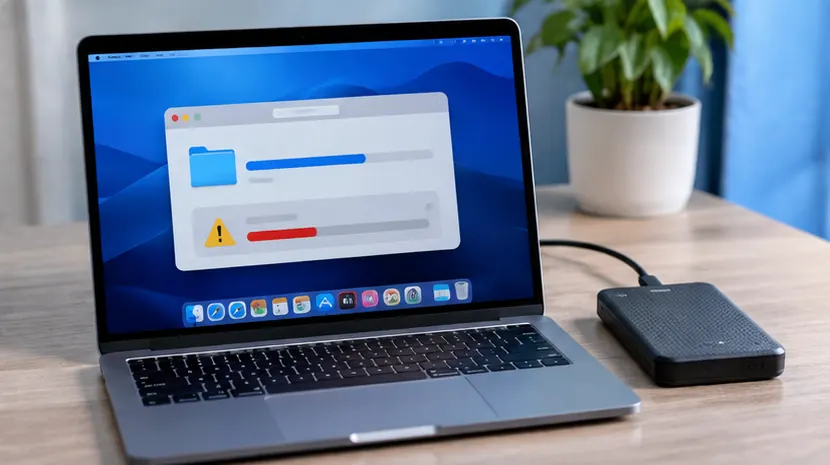
Most installation failures come from an incomplete download, a full disk or missing permissions.
An app may refuse to open when it was built for a newer or older macOS release than the one on your Mac.
Gatekeeper prompts, damaged downloads or chip incompatibility can all stop an app from launching.
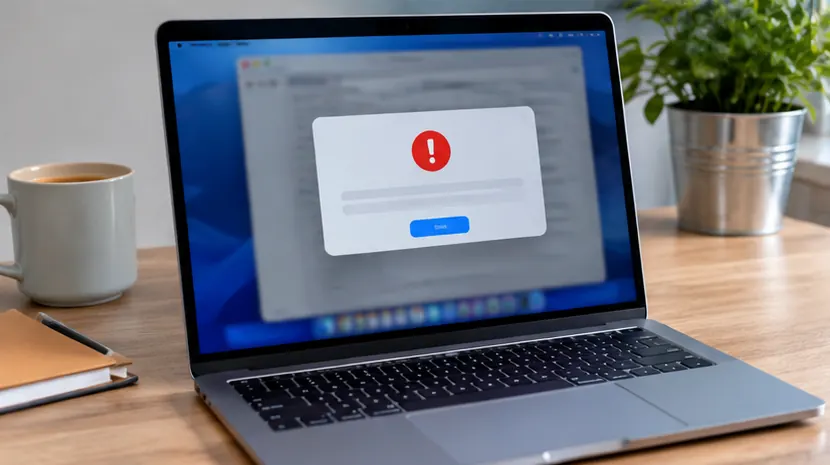
Files flagged as damaged or that will not mount usually point to corruption or an unreliable source.
Hackstore questions answered in one place, covering everyday use, compatibility and safety on macOS.
Hackstore can be explored without a purchase, but each app listed through it may have its own licence and pricing. Check the terms of every individual app before you install or use it.
Hackstore is an alternative app discovery platform for Mac users. It gathers software in browsable categories so you can review app details before deciding what to download.
The Mac App Store is run by Apple and every app passes Apple's review. Hackstore focuses on discovery outside that marketplace, so checking each app's source, developer and permissions becomes your responsibility.
No. Hackstore is not made, endorsed or distributed by Apple, and it is a separate platform from the Mac App Store.
Browsing Hackstore does not depend on an Apple Account. Some apps you find may still ask you to sign in to a developer account or licence service of their own.
The HackStore 2.05 download is provided by an external software archive. Check the installer and macOS compatibility before opening it.
Mac users typically look for productivity tools, creative software, games, system utilities and developer tools. Availability differs over time, so check each listing directly.
Basic Mac skills are enough for browsing and reading app information. Installing software from outside the Mac App Store does involve macOS security prompts, which the setup steps on this page explain.
Apps installed outside the Mac App Store usually update through their own built-in updater or by downloading a newer release from the developer. Check each app's update method after installation.
Yes. Most Mac apps can be removed by moving them from the Applications folder to the Trash. Some apps include their own uninstaller for helper files, so check the developer's instructions.
Compatibility depends on the release you download and on your macOS version and processor type. Review the requirements listed for the release and for each app before installing.
Safety depends largely on where each app comes from. Keep Gatekeeper enabled, download from trusted developers, read permission requests carefully and avoid modified copies of paid software.
macOS checks apps downloaded from the internet with Gatekeeper. A warning appears when an app is not from the Mac App Store or cannot be verified, which is a prompt to confirm you trust the source.
Check the developer's name, the download source, the app's licence, the macOS version it supports and the permissions it asks for. Skip any app whose origin you cannot confirm.
No. Turning off Gatekeeper removes a useful protection for every app on your Mac. If you trust a specific app, macOS lets you approve that single app in Privacy & Security settings instead.
macOS shows this when a downloaded file fails its checks or appears altered. Delete the file, download a fresh copy from the developer's own page and do not try to force it open.
This depends on each app's build. Apps made for Intel Macs may run through Rosetta 2 on Apple silicon, while some older or specialised apps may not run at all, so check each listing.
Downloading or using paid software without a valid licence breaks the developer's terms and copyright law in most countries. Buy licences for paid apps and use free or open-source alternatives where possible.
Download apps only from the developer's own website or repository, compare any published checksums with your file, and treat warnings about damaged or unverified files as a reason to stop.
Quit the app, remove it, review the Login Items and Privacy & Security settings for anything it added, and run a security scan. Change any passwords you entered while it was running.